Module overview
The Partner Map module creates a professional page with an interactive map of all your partners, showrooms, distributors and service points. In just a few seconds, customers can find the nearest location, check contact details and opening hours, and plot a route there with a single click.
The module supports a Leaflet/OpenStreetMap map (free, no API key) or Google Maps. It adds "find nearest" geolocation with distance-based sorting, automatic address geocoding, pin clustering for large networks, dedicated SEO pages for each partner (with schema.org LocalBusiness data), a public "Become a partner" form with moderation, and view and click statistics. You manage everything from the back office, fully in Polish and compatible with multistore mode.
Key features
- Interactive partner map (Leaflet/OpenStreetMap or Google Maps)
- "Find nearest" geolocation + distance and sorting (km/miles)
- Automatic address geocoding (no API key)
- Pin clustering for large partner networks
- Partner SEO pages (friendly URL + schema.org LocalBusiness)
- "Become a partner" form with moderation and email notification
- View and click statistics + partner ranking
- "Open / Closed" badge based on structured opening hours
- Search, category and country filter, map / list / grid view
- Featured partners, social links, homepage widget
Requirements
| PrestaShop | 1.7.0 – 9.x |
| PHP | 7.1+ |
| ionCube Loader | 10+ (the production version is encoded) |
| Multistore | Yes (separate data for each shop) |
Installation
- Download the module ZIP file from your customer panel at presta4you.com.
- In the admin panel, go to Modules → Module Manager → Upload a module.
- After installation, click Configure to open the settings.
- Activate the license key in the format
P4U-PART-XXXX-XXXX-XXXX-XXXX.
- In the Partners tab, add your first partner and click Fetch coordinates from address.
Configuration
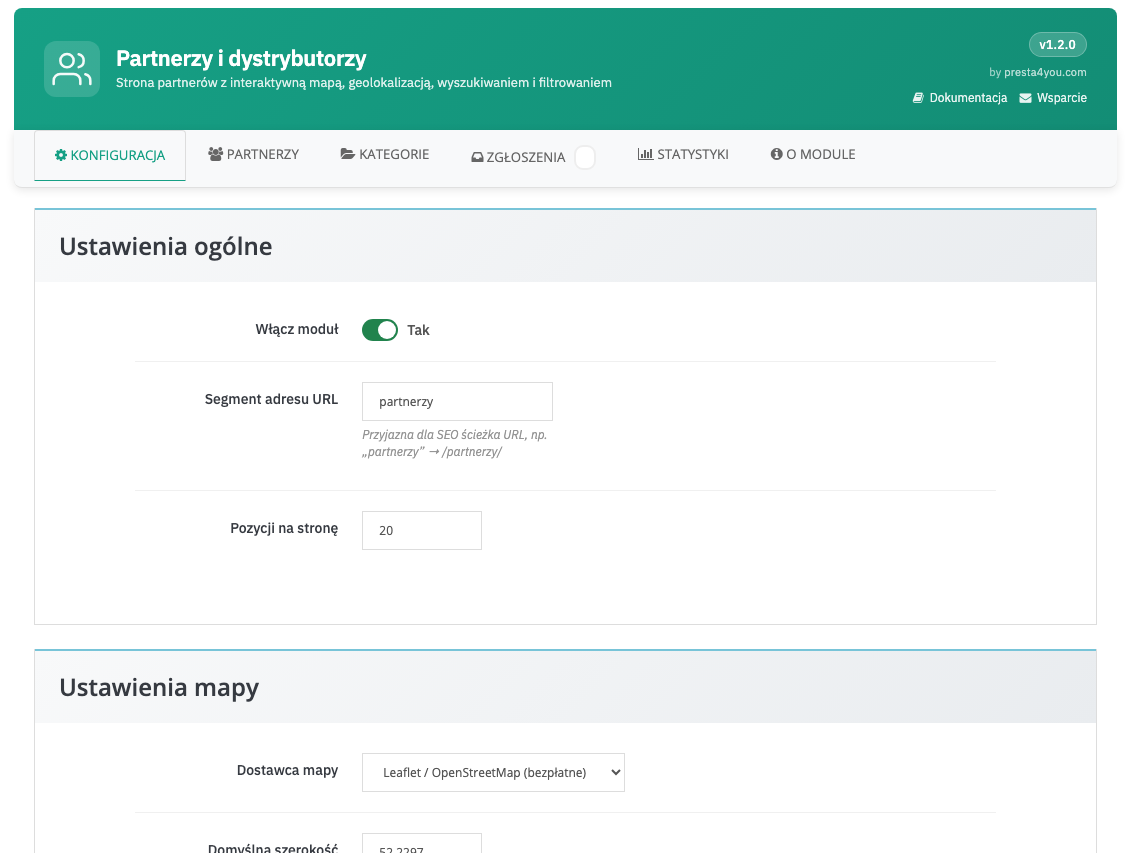
You will find all settings in the Configuration tab: map provider, geolocation, clustering, distance unit, visible fields, default view, country filter, "Open" badge, detail pages, statistics, widget and the "Become a partner" form.
Configuration
General settings, map settings (Leaflet/Google, clustering, geolocation, distance unit), display settings (visible fields, default view, filters, "Get directions", "Open" badge) and premium features (SEO pages, statistics, widget, "Become a partner" form).
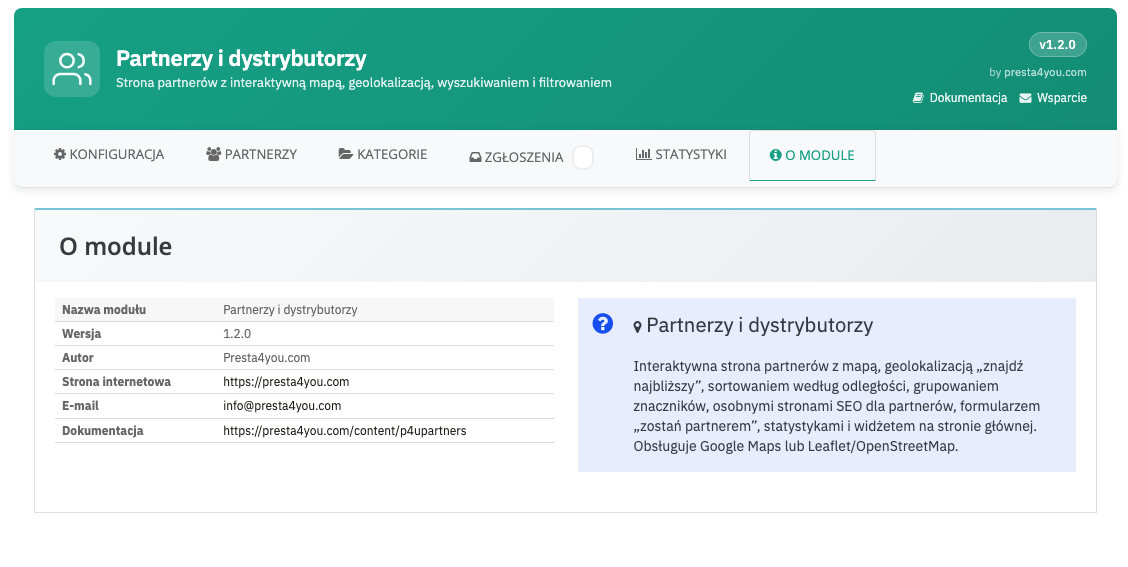
About the module
Information about the module — version number, author, license details and links to online documentation and technical support.
Partners and categories
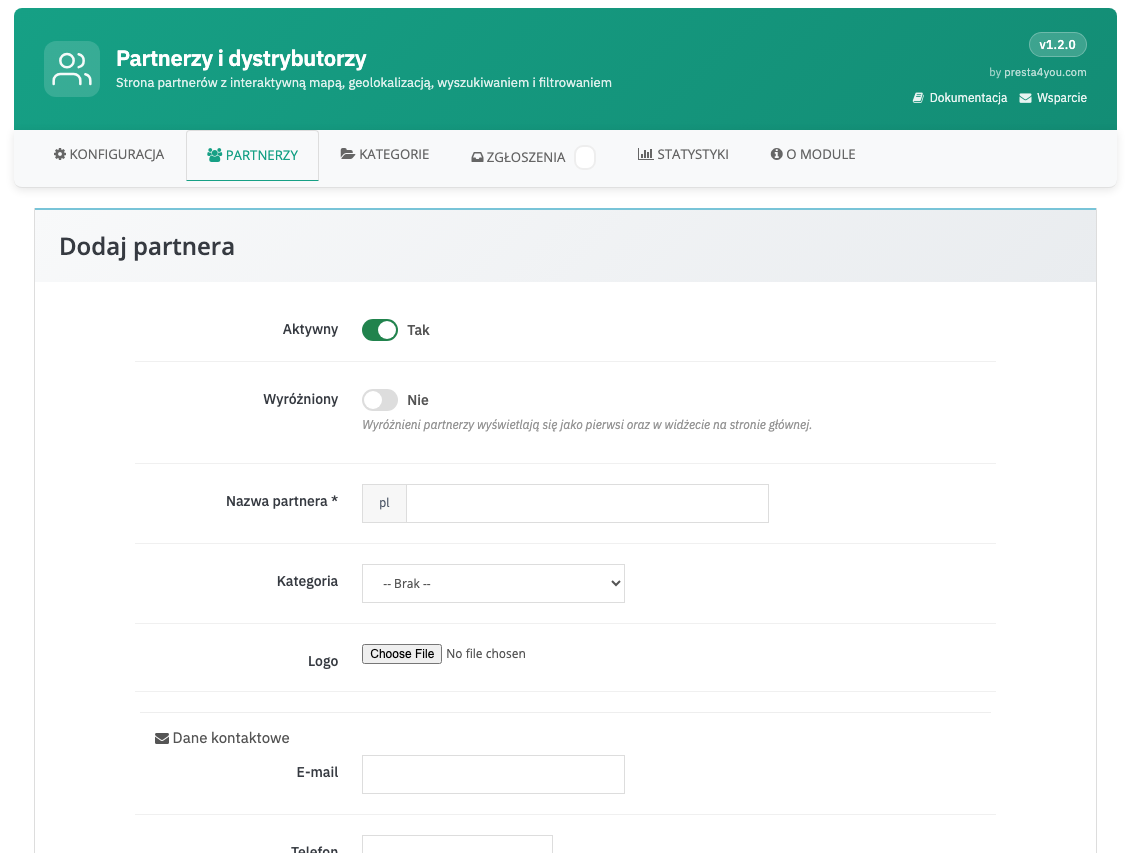
In the Partners tab you add and edit partners. For each one you set the name, category, logo, contact details, social media links, address and coordinates — which the module fetches automatically with the Fetch coordinates from address button. A structured opening-hours schedule drives the "Open / Closed" badge.
Partners — list and form
Partner form with contact fields, social media, address geocoding and an opening-hours builder, and below it the partner list with "Active" and "Featured" toggles.
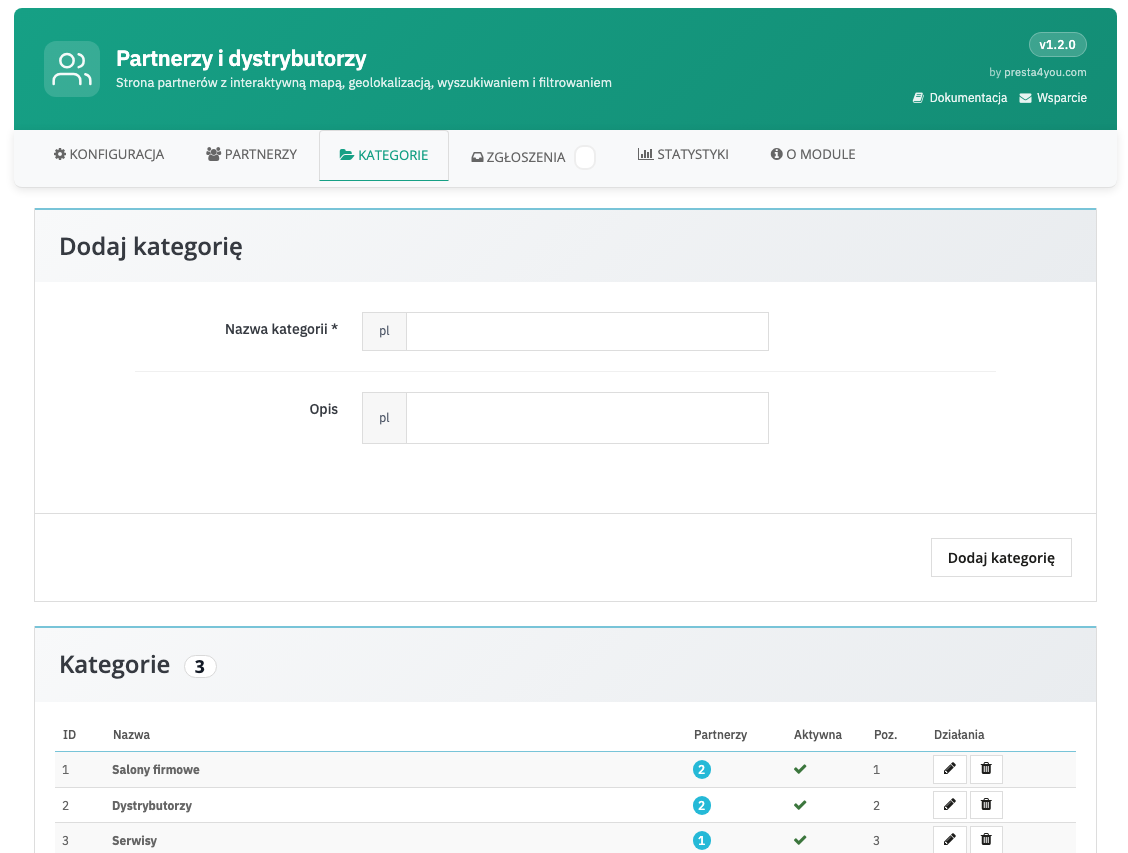
Partner categories
Categories let you group partners (e.g. showrooms, distributors, service points) and filter them on the shop page. Each category is multilingual.
Customer view
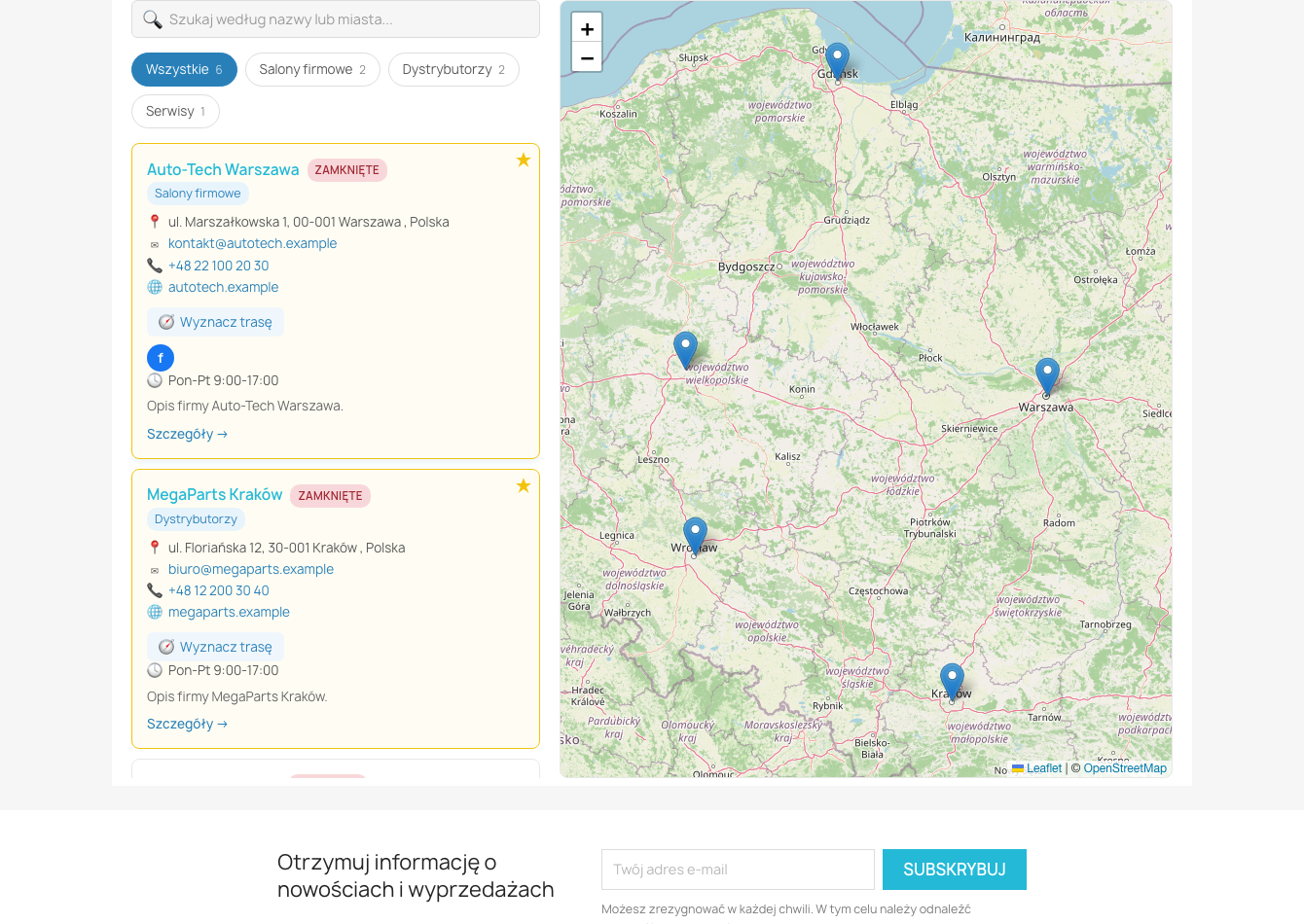
The partners page is available at a friendly address (e.g. /partnerzy). Customers see a map with pins and a list of cards, can search, filter by category and country, switch between map / list / grid view, and click Find nearest to sort partners by distance.
Partners page
Interactive map with pins, partner cards with an "Open / Closed" badge, distance, social media and a "Get directions" button, plus a search box and filters.
Partner page (SEO)
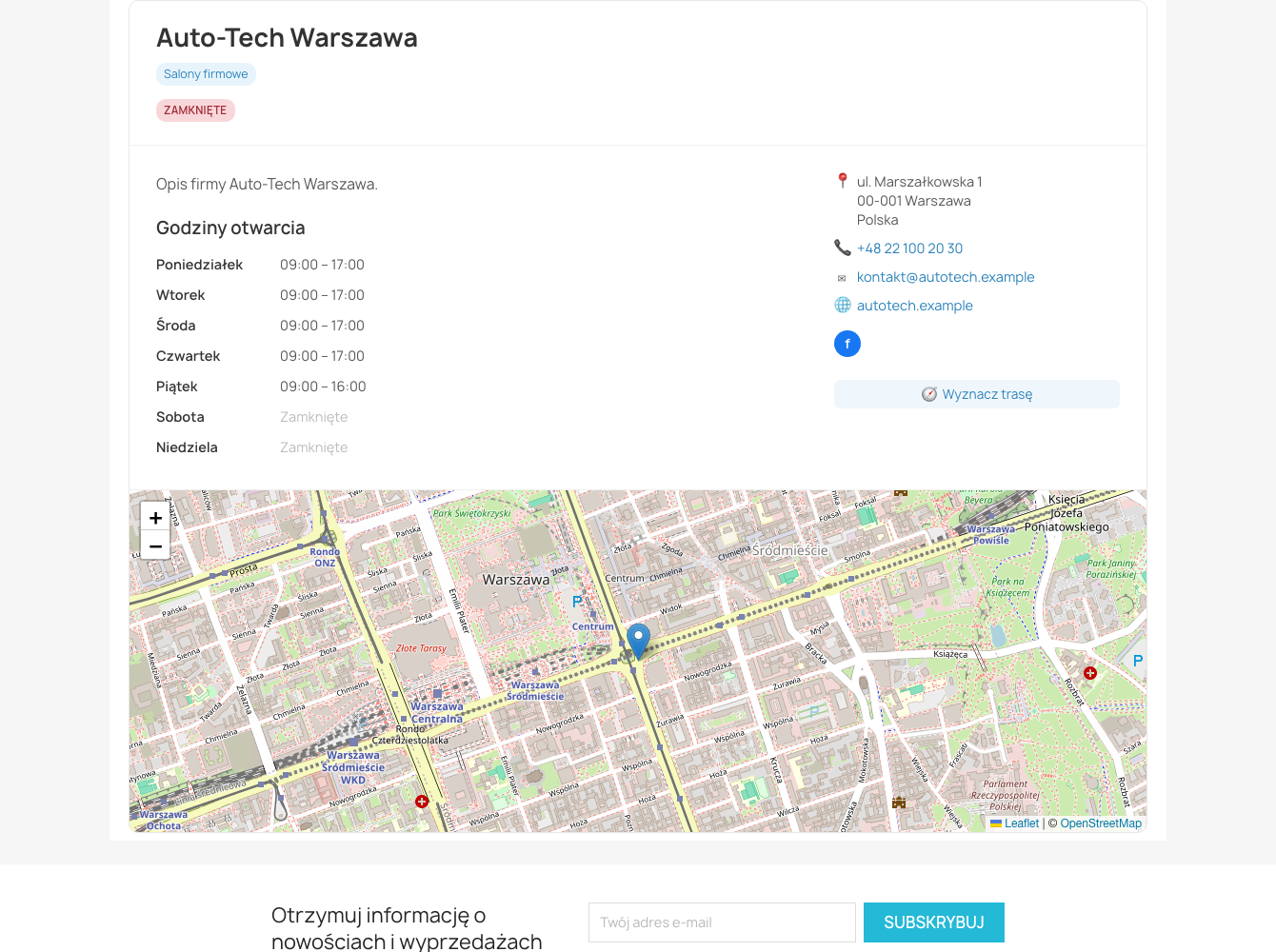
A dedicated page for each partner with full details, an opening-hours table, a map and schema.org LocalBusiness markup (JSON-LD) — helping with local ranking in Google.
Submissions and statistics
Once the "Become a partner" form is enabled, visitors can submit their company. Submissions go to moderation, and you accept or reject them. The Statistics tab shows how the partners page is being used.
"Become a partner" form
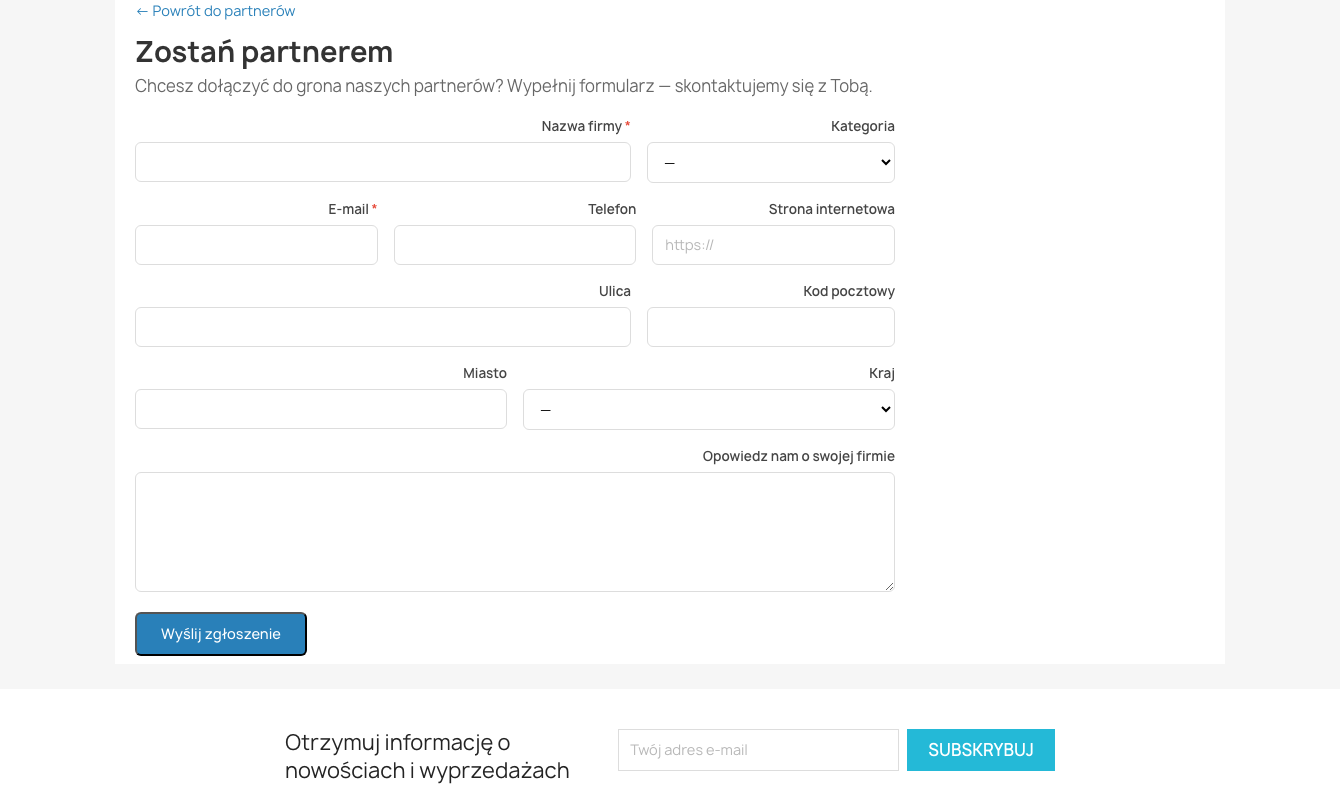
Public submission form. After it is sent, the submission appears in the back office as pending, and the administrator receives an email notification.
Submissions (moderation)
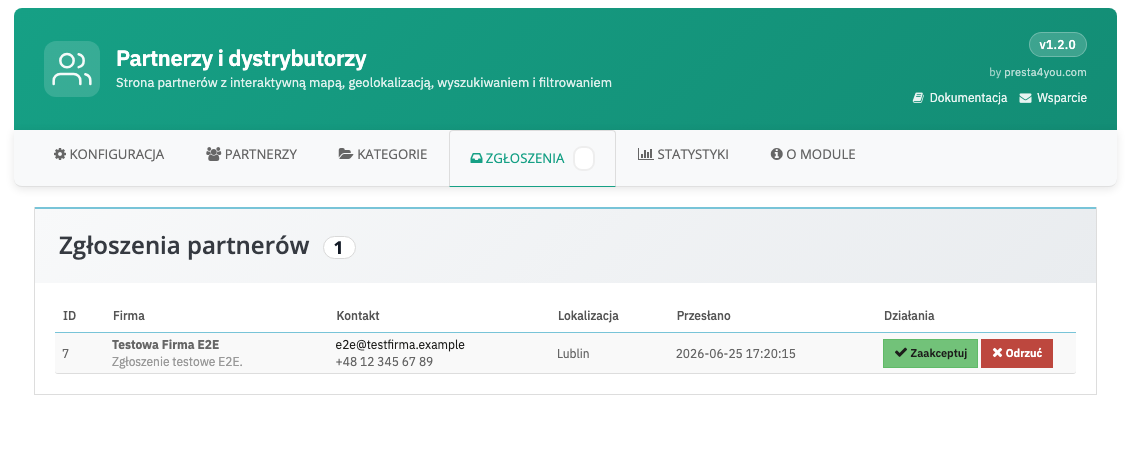
List of pending submissions with "Accept" and "Reject" buttons. An accepted partner appears on the map immediately.
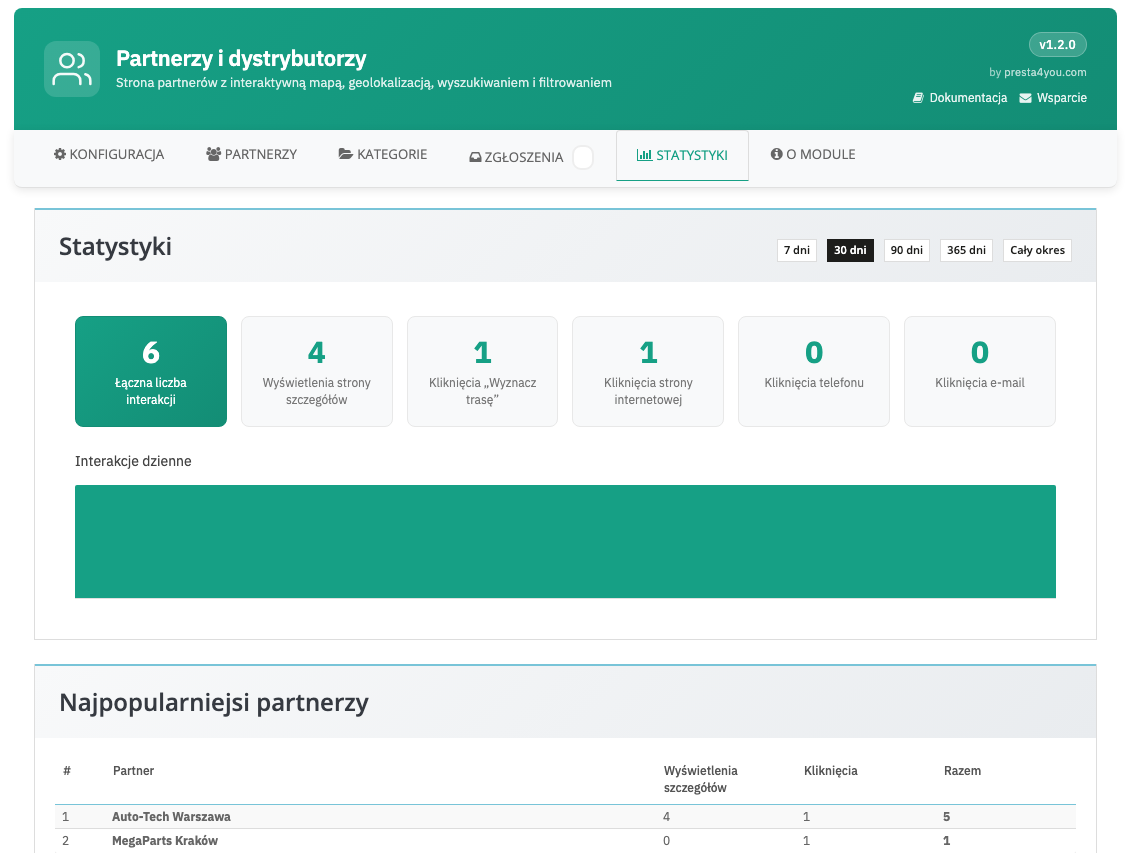
Statistics
A dashboard with the number of partner page views and clicks (phone, email, website, "Get directions"), a daily chart and a ranking of the most popular partners.
FAQ
Do I need a Google Maps API key?
No. By default the module uses Leaflet/OpenStreetMap, which are free and require no key. Google Maps is optional.
How do I set a partner's coordinates?
Enter the address and click "Fetch coordinates from address" — the module will determine the latitude and longitude itself. You can also enter them manually.
Can a customer find the nearest partner?
Yes. Once geolocation is enabled, the "Find nearest" button sorts partners by distance from the customer's location and shows the distance.
What is the "Become a partner" form?
It is a public form in which companies express their interest in cooperation. Submissions go to moderation (accept/reject), and you receive an email notification.
Does the module support Multistore?
Yes. Partners, categories and statistics are stored separately for each shop.
Support
Need help? Get in touch with us!
Want this in your own store?Everything described in this documentation is handled by the Partners Map module. Installation takes a few minutes and the configuration works exactly as described above.
View the module in the storeUpdates and technical support · VAT invoice
 English
 Polish
 Français