 English
 Polish
 Français
1 Module overview
The module adds to your PrestaShop store the mandatory right-of-withdrawal feature required by EU Directive 2023/2673 (in force from 19 June 2026): an always-visible „Withdraw from contract here” button and a simple electronic form that guides the consumer through the whole process and sends a confirmation on a durable medium.
But it is more than legal compliance. The module lets you mark products and categories that are excluded from the right of withdrawal (art. 38 of the Consumer Rights Act) and synchronises with PrestaShop’s native returns. From 19 June 2026 every online store selling to consumers must provide a permanently visible withdrawal feature — as easy to use as placing an order. Failing to provide it carries penalties (in Poland supervised by UOKiK, fines up to 10% of annual turnover).
2 Requirements
| Item | Requirement |
|---|---|
| PrestaShop | Versions 1.6 – 9 (compatibility confirmed from 1.6.0.0 to 9.x, including PrestaShop 1.7, 8 and 9). |
| PHP | PHP 7.2 or newer. |
| ionCube extension | Required in the production build — the files are ionCube-encoded. The hosting must have the ionCube loader enabled. |
| Cron task | Recommended (not required) — expires unconfirmed requests and clears rate limits. You will find the task URL in the „About” tab. |
phpinfo()).
3 Installation
- Log in to the PrestaShop admin panel.
- Go to Modules → Module Manager.
- Click Upload a module and select the
p4ueasyreturn.zipfile. - Wait for the successful-installation message, then click Configure.
- In the General tab fill in the return address — this is the only manual step needed for the storefront to be fully ready.
4 Configuration
Open the configuration screen via Modules → Module Manager, find the „Withdraw from contract” module and click Configure. At the top you will see a metrics panel (number of withdrawals today / 7 / 30 days, etc.), and below it the tabs described below. Each tab has its own Save button — you confirm changes separately in each tab.
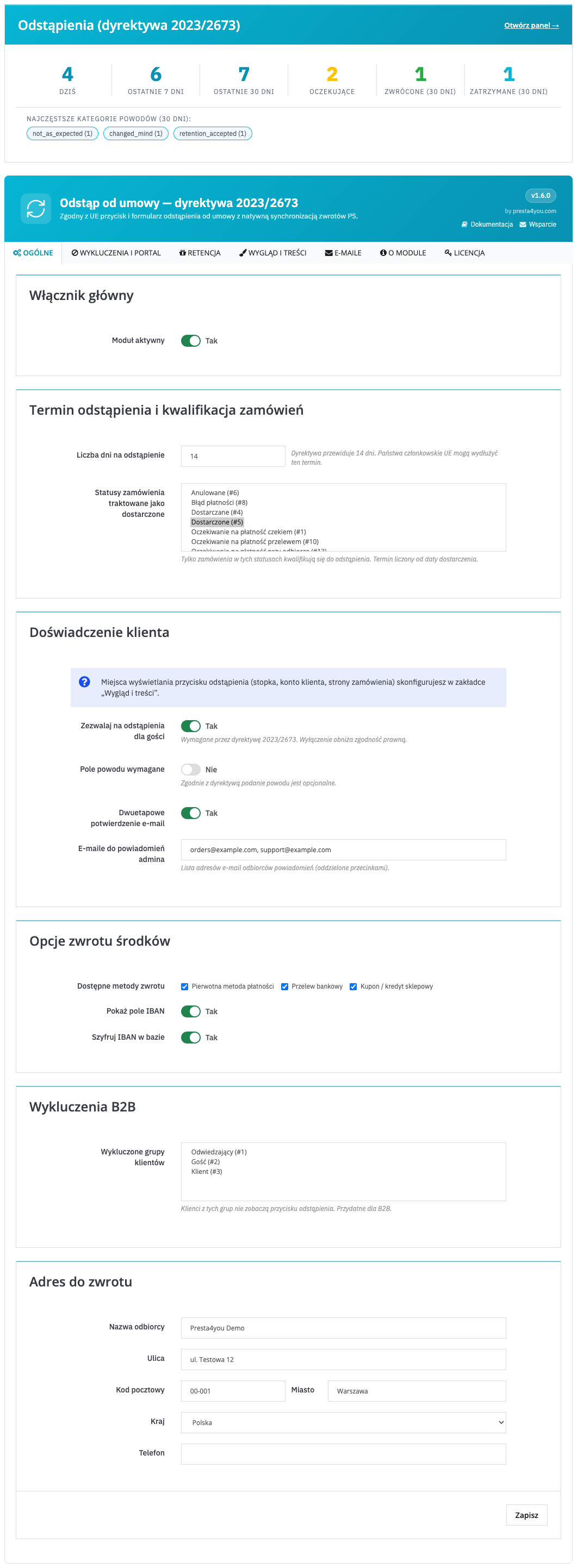
4.1. General
Basic settings: the master switch, withdrawal period, order eligibility, customer options, refund methods, B2B group exclusions and the return address.
| Setting | Description |
|---|---|
| Module active | Master switch. When off, the whole storefront side disappears — the button and withdrawal form stop being available to customers. Default Yes. |
| Withdrawal days | How many days from delivery the customer has to withdraw. The directive provides 14 days; change it only if local law or your policy requires a longer period. Default 14. |
| Order statuses treated as delivered | Select the statuses that mean the parcel reached the customer. Only orders in these statuses are eligible for withdrawal, and the deadline is counted from the date the order entered such a status. |
| Allow guest withdrawals | Lets customers without an account submit a withdrawal after entering the order reference and e-mail. Required by the directive — recommended Yes. |
| Two-step e-mail confirmation | When on, after submitting the form the customer receives an e-mail with a link (valid 48 hours) that must be clicked to finalise the withdrawal. Increases request reliability. Default Yes. |
| Admin notification e-mails | Addresses (comma-separated) that receive a notification about every new withdrawal — e.g. support or warehouse mailboxes. |
| Available refund methods | Choose which refund methods the customer can select: original payment method, bank transfer, voucher / store credit. |
| Show IBAN field | Whether the bank-account field appears in the form (needed for a bank-transfer refund). Turn off if you refund only to the original method or by voucher. |
| Encrypt IBAN in the database | When on, the account number is stored encrypted (AES-256-CBC). Recommended Yes for personal-data protection. |
| Excluded customer groups | Groups that will not see the withdrawal button — useful for business customers (B2B), who are not covered by the consumer right of withdrawal. |
| Return address (Recipient name, Street, Postal code, City, Country, Phone) | The details the customer ships the goods back to. They appear on the thank-you page and in e-mails. Fill in your returns intake point (Country defaults to Poland). |
4.2. Exclusions & portal
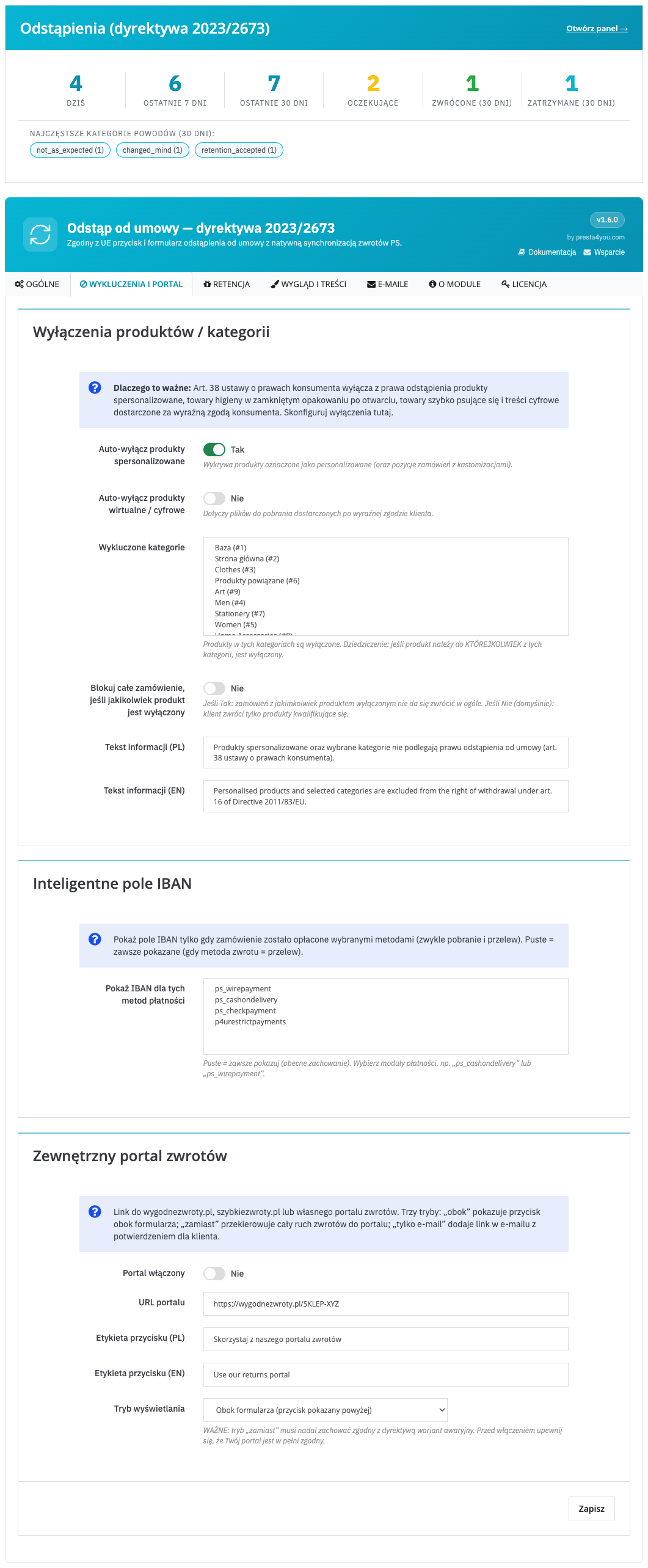
Defines which products and categories are excluded from the right of withdrawal, when to show the IBAN field depending on the payment method, and the configuration of an external returns portal.
| Setting | Description |
|---|---|
| Excluding a single product | On the product page (Catalogue → Products), in the „Right of withdrawal” panel, you flag a product as excluded from withdrawal. This is the only per-product method — the module never excludes anything automatically. |
| Excluded categories | Product categories excluded from withdrawal (e.g. hygiene, food, press). A product in any ticked category is excluded. |
| Block the whole order if it contains an excluded product | When on (Yes) such an order cannot be returned at all. Default No — the customer withdraws only from the eligible products (usually better). |
| Notice text (PL / EN) | The message shown to the customer when a product is excluded from withdrawal. Adapt it to your assortment and legal basis. |
| Show IBAN for these payment modules | The bank-account field appears only when the order was paid with one of the selected methods (e.g. cash on delivery, transfer). Empty = the IBAN field is always shown for transfer refunds. |
| Portal enabled | Enables integration with an external returns portal (e.g. wygodnezwroty.pl, your own). Default No. |
| Portal URL | The full link to your returns portal, assigned to the store by the portal provider. |
| Button label (PL / EN) | The text on the button leading to the returns portal. |
| Display mode | „Alongside the form” (extra button), „Instead of the form” (all traffic to the portal) or „Only in the e-mail”. Default „Alongside the form”. |
4.3. Appearance & texts
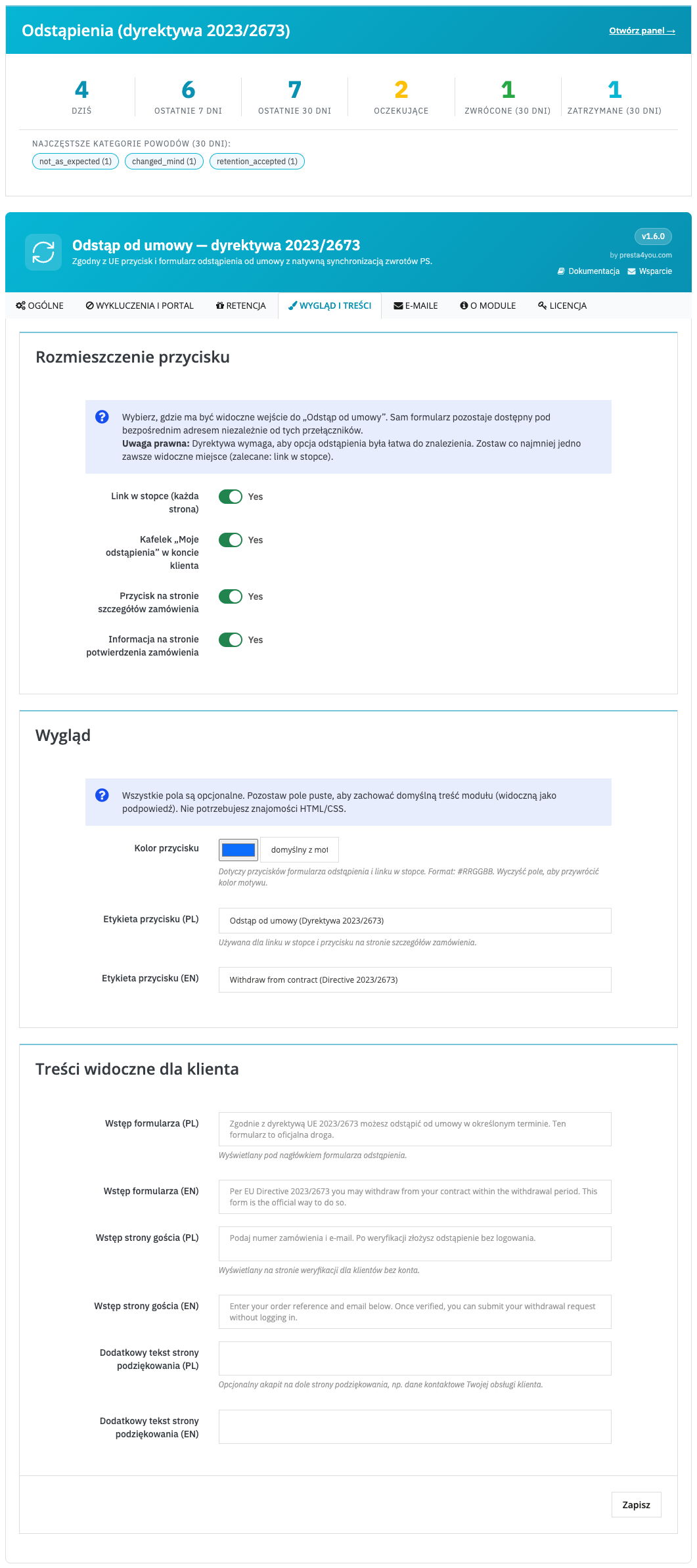
Controls where the withdrawal entry point appears (footer, account, order pages), the button colour and labels, and the intro texts shown to the customer.
| Setting | Description |
|---|---|
| Footer link (every page) | Shows the withdrawal link in the footer on every page — the most easily accessible place. Recommended to leave on (easy-accessibility requirement). Default Yes. |
| „My withdrawals” tile in the customer account | Adds a tile in the customer account leading to the list of their withdrawals. Default Yes. |
| Button on the order details page | Shows the withdrawal button directly in the customer’s order details. Default Yes. |
| Notice on the order confirmation page | After purchase, displays a short note about the option to withdraw, with a link. Default Yes. |
| Button colour | Colour of the form buttons and the footer link (format #RRGGBB, with a colour picker). Empty = the store theme colour. |
| Button label (PL / EN) | Text on the footer link and the order button. Empty = the default text „Withdraw from contract here”. |
| Form intro (PL / EN) | Introductory text above the withdrawal form. Empty = default text. |
| Guest page intro (PL / EN) | Text on the verification page for customers without an account. Empty = default text. |
| Extra thank-you page text (PL / EN) | Optional paragraph at the bottom of the thank-you page — e.g. customer-service contact details. |
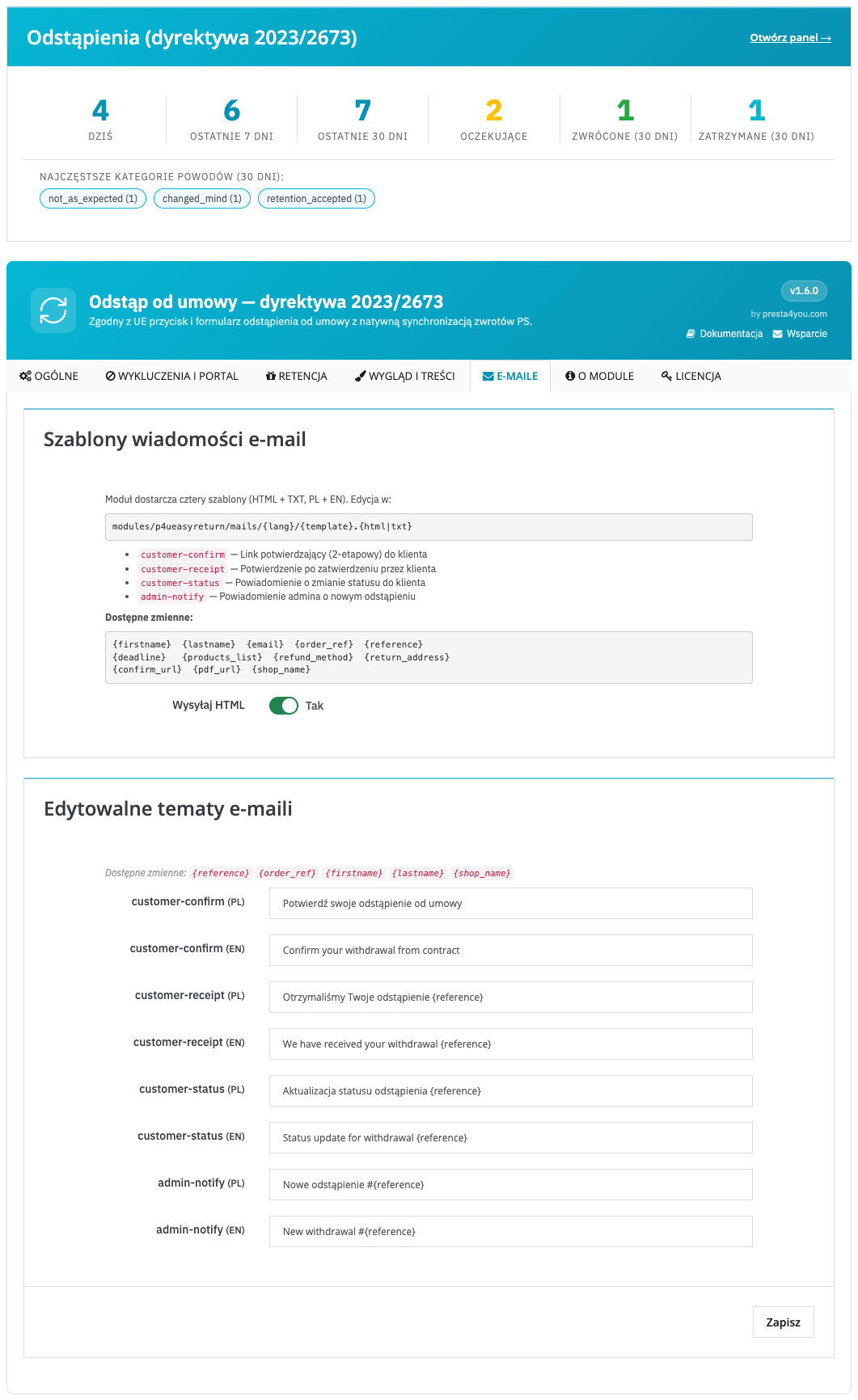
4.4. E-mails
Settings for the messages sent during the withdrawal process: the format and the editable subjects of each e-mail in Polish and English.
| Setting | Description |
|---|---|
| Send HTML | Whether e-mails are sent as a graphical (HTML) version or as plain text. Default Yes (HTML). |
| customer-confirm (PL / EN) | Subject of the e-mail with the confirmation link (when two-step confirmation is on). PL and EN. |
| customer-receipt (PL / EN) | Subject of the confirmation e-mail after the withdrawal is submitted. PL and EN. |
| customer-status (PL / EN) | Subject of the e-mail informing the customer about a change in their withdrawal status. PL and EN. |
| admin-notify (PL / EN) | Subject of the e-mail to the store team about a new withdrawal. PL and EN. |
{reference}
(request number), {order_ref} (order number), {firstname},
{lastname}, {shop_name}. E-mails are available in 6 languages (PL, EN, DE, FR, IT, ES).
4.5. About
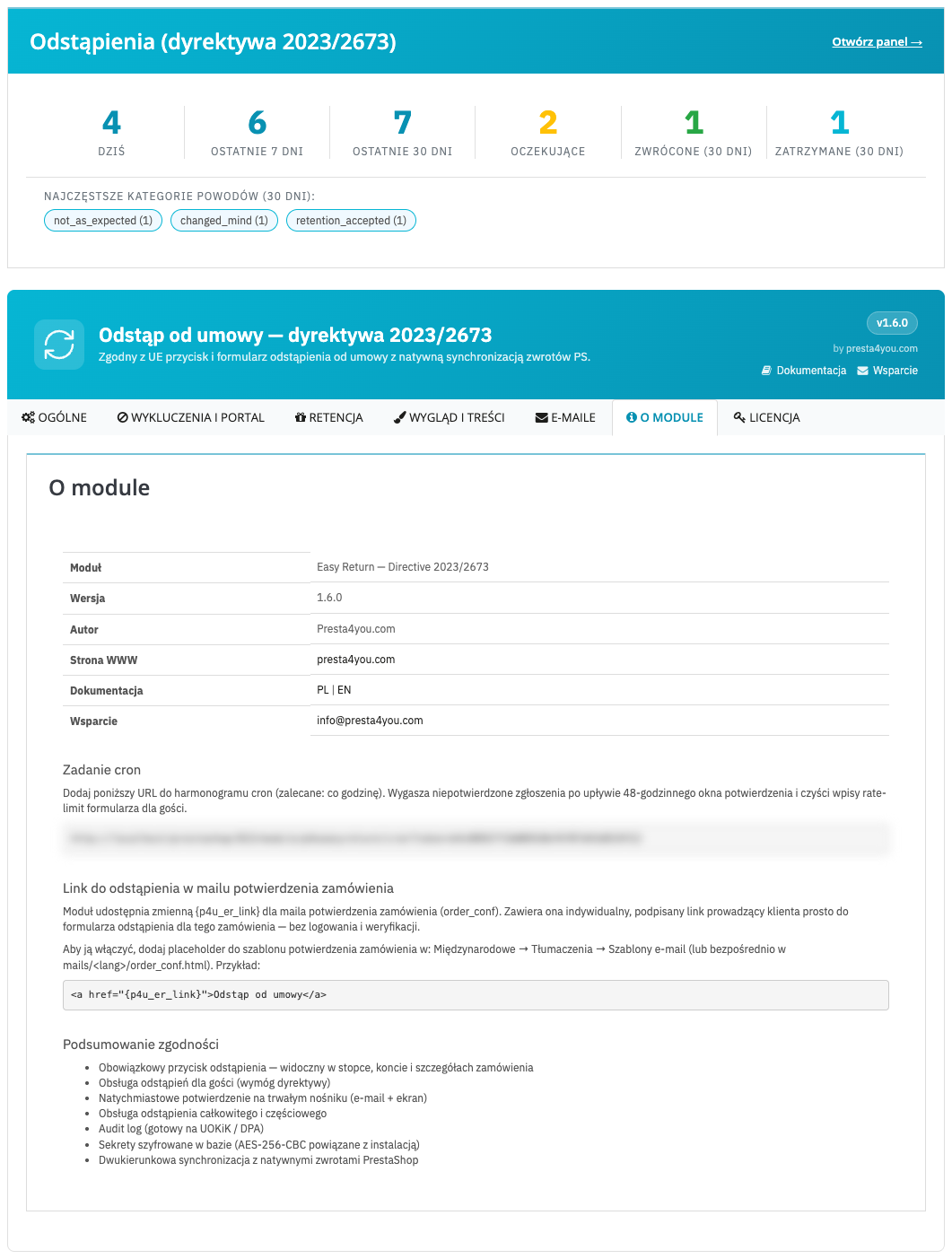
An information tab (read-only): module data, version, author, links to documentation
and support, the cron task URL and a compliance summary. The cron task is responsible
for expiring unconfirmed requests and clearing rate limits — the URL to add to your
scheduler is right here. It also explains how to add to the order-confirmation e-mail an
individual, signed withdrawal link (the {p4u_er_link} placeholder) that leads
the customer straight to the form without logging in.
5 Admin panel
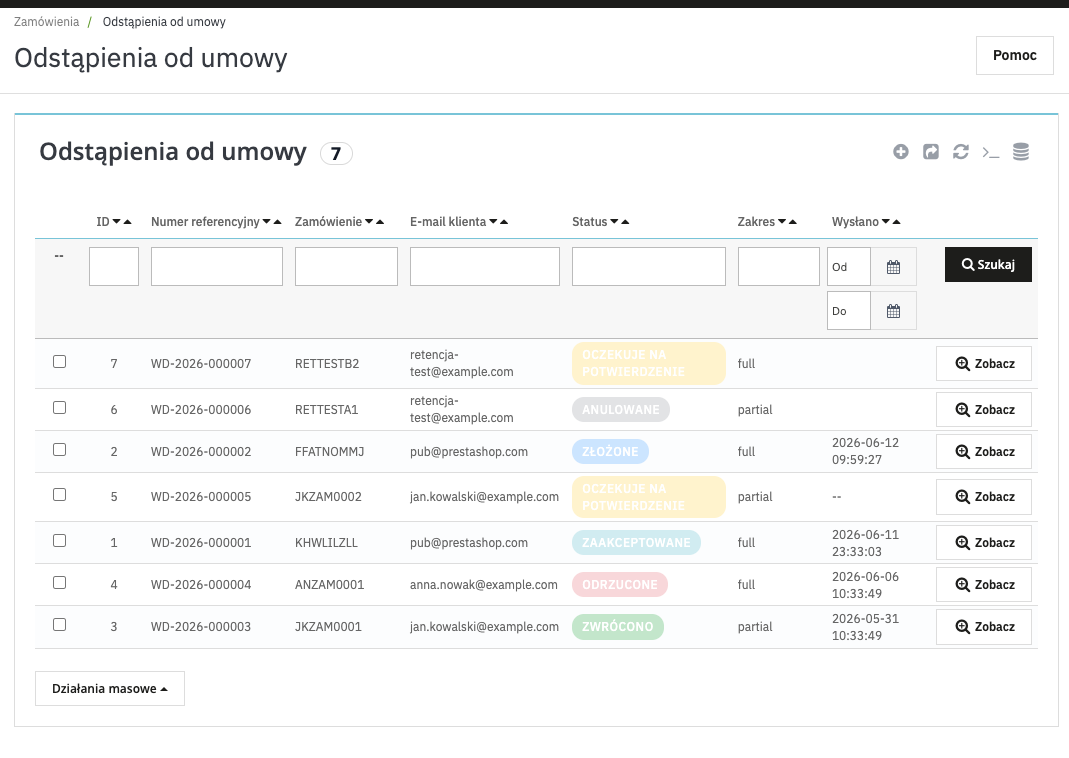
You handle submitted withdrawals in the admin panel under Sales → Orders → Withdrawals. The list has filters, colour-coded statuses, a details view, bulk actions and CSV export (17 columns, with a UTF-8 BOM for Excel). A shortcut and KPI metrics are also available on the module configuration screen and on the admin dashboard (a widget with KPI tiles).
Withdrawals list
Withdrawal details
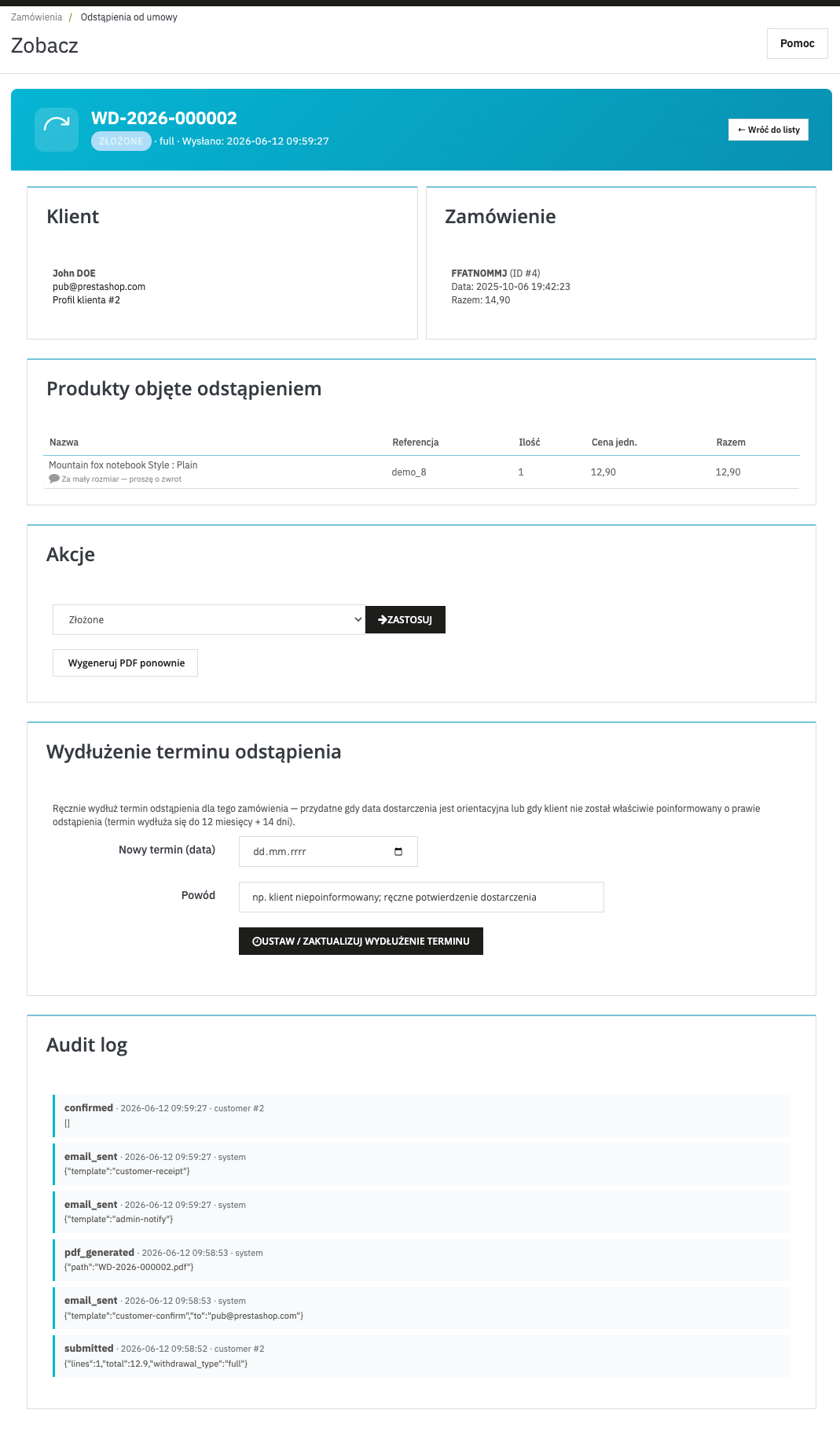
The details view shows the full consumer statement, the selected products and quantities, per-product reasons, the refund method, an audit log (status changes, sent e-mails, PDF) and a section for manually extending the deadline of a single order’s withdrawal (e.g. when the customer was not properly informed — the deadline then extends to 12 months + 14 days, art. 30 of the Consumer Rights Act).
Withdrawal statuses
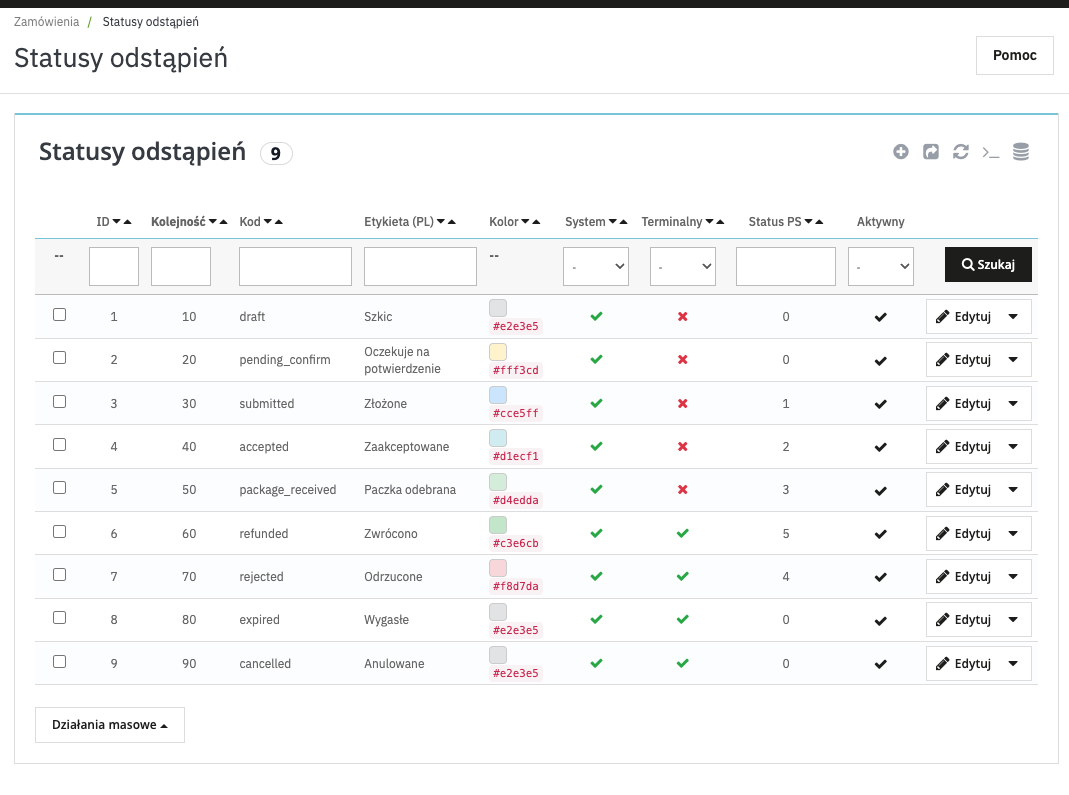
Statuses are fully configurable (menu Sales → Orders → Withdrawal statuses). Out of the box the module adds 9 system statuses (e.g. draft, pending confirmation, submitted, accepted, package received, refunded, rejected, expired, cancelled), each with a PL/EN label, a badge colour, an order, and a mapping to the native PrestaShop return status. System statuses are protected from deletion; you can add your own.
6 What the customer sees
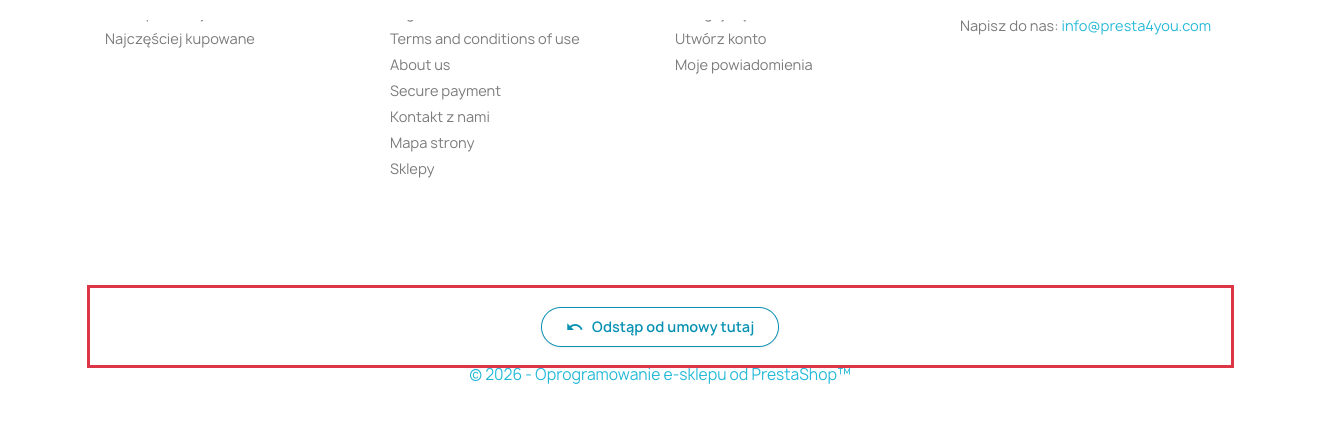
The „Withdraw from contract here” button in the footer
On every page, in the footer, there is a „Withdraw from contract here” link (in version 1.6.1 restyled into an outlined pill button). This is the main, always-available entry point. On click the store recognises whether the customer is logged in: a logged-in customer goes straight to the form, a guest — first to the verification page.
Guest withdrawal (without logging in)
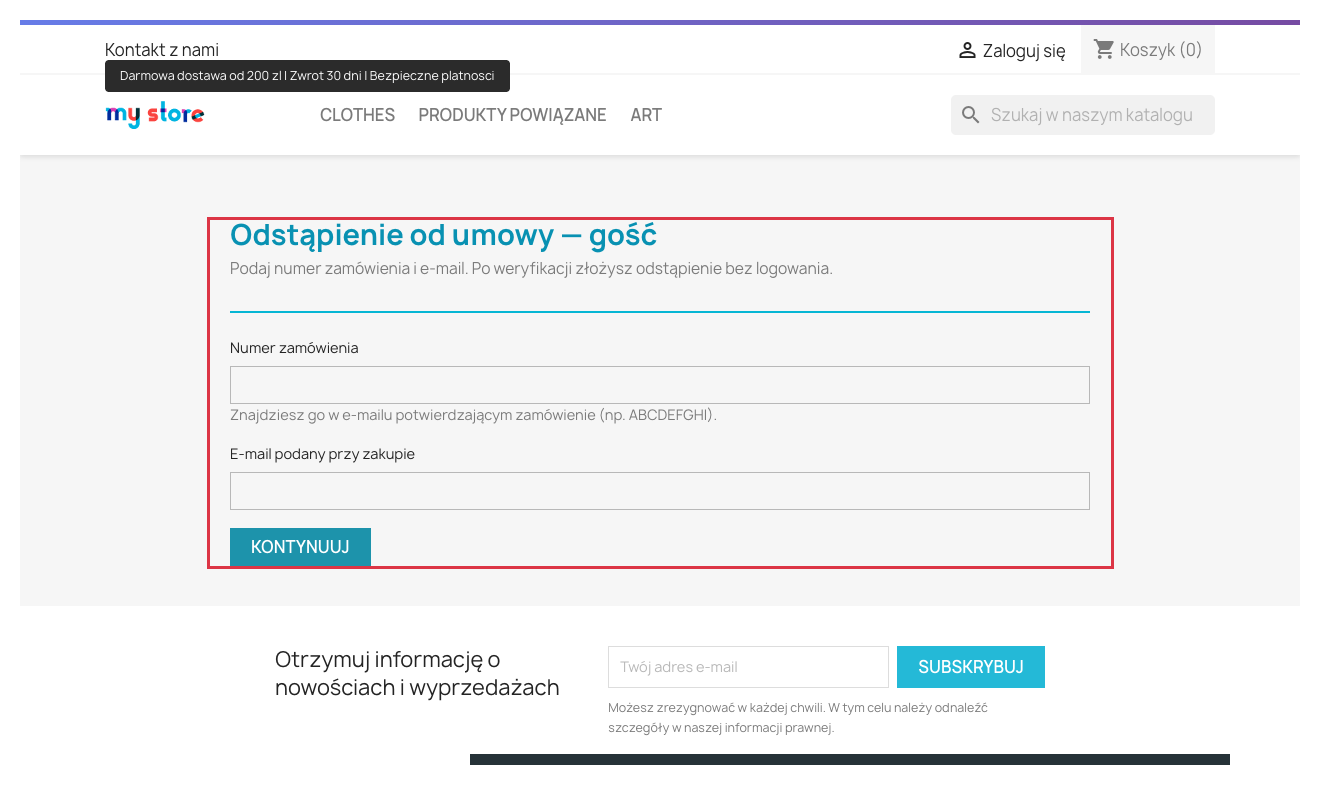
A customer without an account enters the order reference (from the purchase-confirmation e-mail) and the e-mail used at checkout, then clicks „Continue”. Once the data matches, they proceed to the form just like a logged-in customer. For security, after five failed attempts from the same address access is temporarily blocked (about 5 hours) — only failed attempts increase the counter.
Withdrawal form
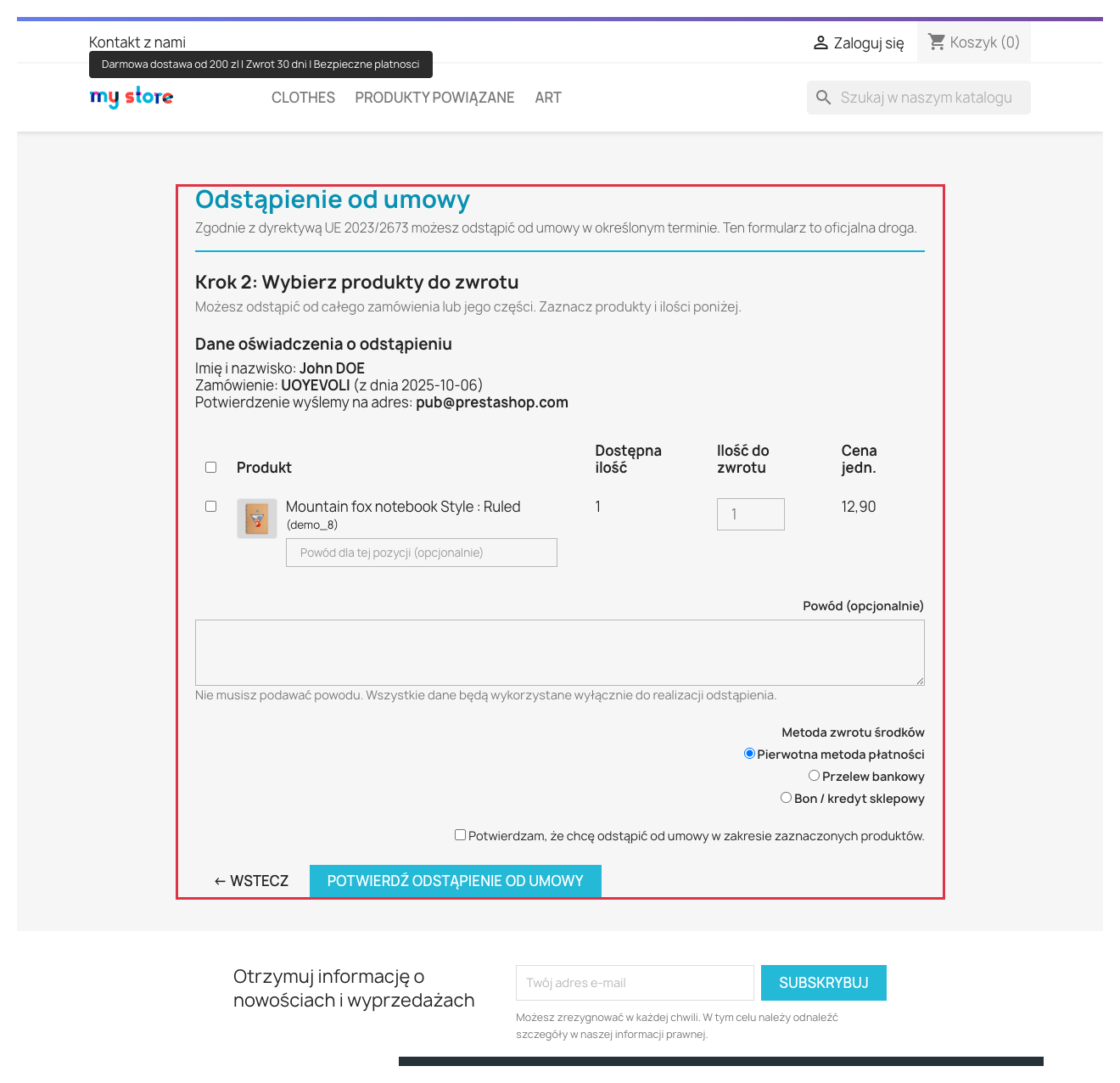
In the order-selection step the customer sees a list of their orders, marked with which ones can be withdrawn from and by when. In the product step they see a summary of the statement (first and last name, order number with date, the e-mail for confirmation — art. 11a), select the products, quantities and an optional per-product reason (with thumbnails), choose the refund method, tick the statement and click „Confirm withdrawal from contract”. If the order contains products excluded from withdrawal, the customer will see a clear note about it.
Thank-you page (durable medium)
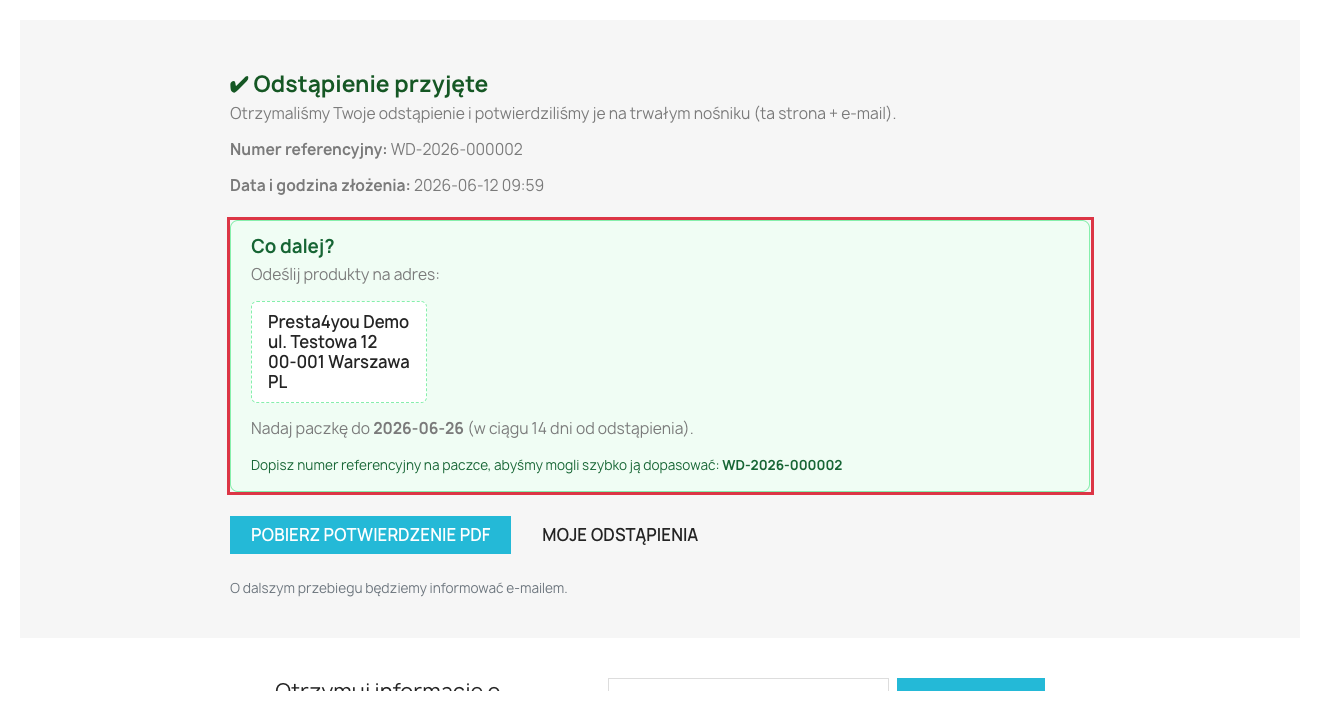
After submitting the request the customer sees „Withdrawal received”, the reference number and the date and time of submission. The „What next?” section shows the return address, the parcel shipping deadline (14 days from withdrawal) and a reminder to write the reference number on the parcel. There is also a „Download PDF receipt” button. When two-step confirmation is enabled, the customer first receives an e-mail with a link (valid 48 hours) and the withdrawal is finalised only after clicking it.
7 FAQ — frequently asked questions
Can a customer without an account withdraw from the contract?
Yes. With the „Allow guest withdrawals” option on (enabled by default), the guest enters the order reference and e-mail and, after verification, submits the withdrawal just like a logged-in customer.
Why doesn’t the customer see the withdrawal button?
Check that „Module active” is on and that the footer link is enabled in the „Appearance & texts” tab. A customer from an excluded group (e.g. B2B) will not see the button. The button for a given order appears only when the order has a „delivered” status and the withdrawal deadline has not passed.
Where do I find submitted withdrawals?
In the admin panel under Sales → Orders → Withdrawals: a list of requests with statuses, filters, a details view and CSV export. A shortcut and metrics are also on the module configuration screen and in the dashboard widget.
Is the module compliant right after installation?
Yes — the default settings (14 days, guest form, e-mail confirmation with date and time) are compliant with the directive. Just fill in the return address in the „General” tab.
9 Support
Questions or need help? We are happy to help.
Everything described in this documentation is handled by the Withdraw from contract — directive 2023/2673 module. Installation takes a few minutes and the configuration works exactly as described above.
View the module in the storeUpdates and technical support · VAT invoice